> For the complete documentation index, see [llms.txt](https://docs.slingdata.io/llms.txt). Markdown versions of documentation pages are available by appending `.md` to page URLs; this page is available as [Markdown](https://docs.slingdata.io/sling-platform/platform/ai-assistant.md).
# AI Assistant
Chat with an AI assistant that reads and edits your Sling Platform project
The AI Assistant is a chat panel inside the Sling Platform UI. It answers questions about your project and does work in it: it reads files, checks run history, validates YAML, and edits configuration.
The assistant uses the same tools as the [MCP Server](/sling-platform/platform/mcp-server.md), so it has the same reach and the same limits. The difference is where it runs. The assistant is built into the UI and speaks to a model endpoint you configure. The MCP server lets an external client, such as Claude Code or Cursor, connect to the project.
The assistant calls tools, then answers. Each tool call is shown.
## Setup
What you set up depends on how you run Sling.
### Cloud
Nothing to set up. Sling supplies the model endpoint, so the assistant is ready the moment you open a project.
The assistant is on by default. Switch it off for a project under **Settings → AI & MCP → Enable AI Assistant**.
### Self-hosted
The assistant calls a model endpoint that you supply. Open **Settings → AI & MCP** and select **Configure** next to **Enable AI Assistant**. Fill in the API format, model, endpoint, and API key. The endpoint is used by every project on the server.
Select **Test** to send a one-token request before you save. After a successful save the launcher appears without a restart.
{% hint style="info" %}
Until a model is configured the launcher button does not appear, and **Enable AI Assistant** is disabled. The **Configure** button stays available so you can set the endpoint.
{% endhint %}
You can still set the `SLING_PLATFORM_ASSISTANT` environment variable on the master server instead of (or until) saving in the UI. A saved UI config takes precedence. Clearing the UI config falls back to the environment variable.
```bash
SLING_PLATFORM_ASSISTANT='{
"api_format": "anthropic",
"model": "claude-sonnet-5",
"api_key_env": "ANTHROPIC_API_KEY"
}'
```
The log shows the configuration that loaded:
```
Loaded assistant config (api_format=anthropic base_url=https://api.anthropic.com model=claude-sonnet-5)
```
#### Configuration reference
The **Configure** dialog exposes the same fields. Use the environment variable when you prefer to inject the key from the host rather than store it in the database.
| Field | Default | Description |
| ---------------- | ---------- | ------------------------------------------------------------------------------------- |
| `model` | — | **Required.** The model name to call. If empty, the assistant stays off. |
| `api_format` | `openai` | `anthropic` selects the Anthropic adapter. Any other value uses the OpenAI adapter. |
| `base_url` | Per format | Endpoint root, with no `/v1` path. The adapter adds the route. |
| `api_key` | — | The API key, given directly. |
| `api_key_env` | — | Name of an environment variable to read the key from. `api_key` wins if you set both. |
| `max_tokens` | `8192` | Cap on tokens the model generates per reply. |
| `context_tokens` | `100000` | Context budget. The assistant compacts a chat when it passes 60% of this. |
| `headers` | — | Extra HTTP headers to send, as a JSON object. |
| `system_extra` | — | Text appended to the system prompt. Use it to state project conventions. |
| `web_search` | `true` | Lets the model search the web. Anthropic only. |
| `limits` | See below | Per-user daily budget and per-turn caps. |
The default `base_url` is `https://api.anthropic.com` for the `anthropic` format and `https://api.openai.com` otherwise. The OpenAI adapter posts to `/v1/chat/completions` and the Anthropic adapter posts to `/v1/messages`.
Because any unrecognized `api_format` falls back to the OpenAI adapter, an endpoint that implements the OpenAI chat-completions API works with `api_format: "openai"` and a `base_url` that points at it.
{% hint style="warning" %}
`web_search` only takes effect with `api_format: "anthropic"`. The OpenAI adapter ignores it. When on, the model can search the web itself, and the system prompt tells it to prefer the built-in `research` tool for Sling documentation and to treat web results as untrusted.
{% endhint %}
OpenAI
```bash
SLING_PLATFORM_ASSISTANT='{
"api_format": "openai",
"model": "gpt-4o",
"api_key_env": "OPENAI_API_KEY"
}'
```
An OpenAI-compatible endpoint
Point `base_url` at the server. Give no `api_key` if it needs no authentication — the adapter then sends no `Authorization` header.
```bash
SLING_PLATFORM_ASSISTANT='{
"api_format": "openai",
"base_url": "https://my-gateway.internal",
"model": "my-model",
"api_key_env": "GATEWAY_KEY",
"headers": { "X-Tenant": "data-team" }
}'
```
## Project settings
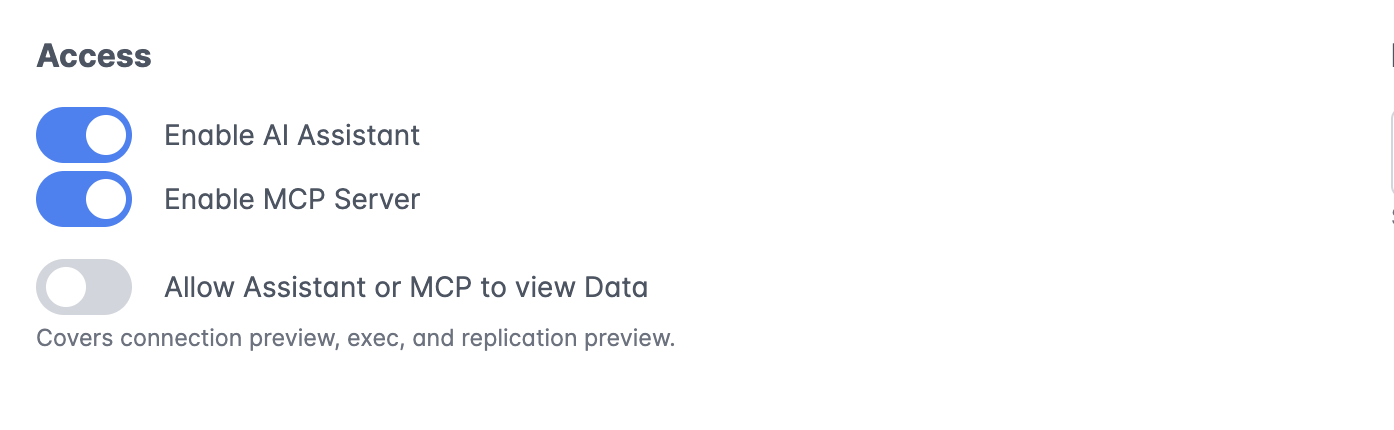
Open **Settings → AI & MCP** to control the assistant per project.
Access controls in Settings → AI & MCP
| Setting | Effect |
| --------------------------------------- | ------------------------------------------------------------- |
| **Enable AI Assistant** | Shows or hides the assistant for this project. On when unset. |
| **Allow Assistant or MCP to view Data** | Lets the assistant read table **contents**. Off by default. |
The assistant does not need **Enable MCP Server**. That setting only controls external MCP clients.
### Data access
Without **Allow Assistant or MCP to view Data**, the assistant reads your configuration but never your data. Four actions stay blocked:
* `connections.preview` — sample rows from a table or file
* `connections.exec` — run a read-only SQL query
* `replications.preview` — preview replication output
* `builds.preview` — preview SQL model output
A blocked call returns a clear message, and the assistant reports it rather than working around it.
{% hint style="warning" %}
Switch this on only if you accept that table contents reach your model endpoint. Listing tables and reading column names stay available either way, so most questions about structure need no data access.
{% endhint %}
## Using the assistant
Select the sparkle button at the bottom right to open the panel.
The launcher, at the bottom right of every page
Type a question and press Enter. Use Shift + Enter for a new line. The assistant streams its answer and shows each tool call as it runs, so you can see the work behind a reply.
Drag the panel by its header to move it. Drag its bottom-right corner to resize it. The size is remembered; the position resets each time you open it.
### Chats
Each conversation is a chat, kept per user and per project. Nobody else sees yours.
Recent chats, with search
* Select **+** to start a new chat.
* Select **‹** to go back to the list.
* Search the box at the top to find text in earlier chats.
* Hover a row and select the bin icon to delete a chat.
### What it can do
The assistant reaches the same thirteen tools as the MCP server:
| Tool | What it does |
| -------------- | -------------------------------------------------------------------------- |
| `project` | Project metadata, dashboard, events, git status and diffs, platform status |
| `files` | List, read, write, patch, rename, and delete project YAML and SQL files |
| `jobs` | List, save, trigger, activate, and deactivate jobs |
| `executions` | Run history, logs, task and step detail, cancel a run |
| `connections` | List and test connections, discover objects, preview and query data |
| `replications` | Validate replications and preview one stream |
| `pipelines` | Validate pipelines |
| `builds` | Compile and preview SQL models |
| `monitors` | Compile monitors; history, column statistics, events, and schema state |
| `agents` | List agents, read metrics, restart or stop an agent |
| `specs` | Validate an API spec and test an endpoint against a live agent |
| `research` | Read Sling documentation and search public engine issues |
| `guides` | Authoring references for each artifact type |
Some actions need an agent that is online, because the agent holds the connection credentials. These include every `connections` action except `list`, `replications.compile`/`preview`, `specs.compile`/`test`, `monitors.compile`, and all of `builds`. `pipelines.compile` validates on the server. If no agent is online, the call fails with an `agent offline` message.
### Good questions to ask
The assistant is strongest when a question needs several lookups joined together:
* "How do I create a replication from Postgres to Snowflake?"
* "Create a SQL model that aggregates daily order totals."
* "Validate my replications. Are any of them broken?"
* "How do I schedule a job to run this replication every morning at 6am?"
* "Which replications failed in the last 24 hours, and why?"
* "This job errors with a type mismatch. What is wrong?"
### What to check
The assistant writes to your project. It can save files, and it can trigger jobs. Treat its edits like a colleague's pull request: read the diff before you rely on it. Every change it makes is recorded in the project event log, attributed to you, and marked as made through the assistant, so **Audit Logs** shows exactly what it did.
## Quotas
Each user gets a budget per project, counted in chat turns and tokens. Daily counters reset at midnight UTC. The monthly token counter resets on the first of the month. **Settings → AI & MCP** shows what you used and where the limit comes from.
Self-hosted deployments call their own model endpoint and pay for it directly, so Sling imposes no budget. Set one under **Set a Quota** if you want a cap. Cloud quotas come from the plan and cannot be changed, because Sling pays for the model calls.
The rest of this section applies to self-hosted only. Change the built-in limits in **Configure → Advanced**, or through the `limits` object when using the environment variable:
```json
{
"model": "claude-sonnet-5",
"api_key_env": "ANTHROPIC_API_KEY",
"limits": {
"turns_per_day": 200,
"tokens_per_day": 1000000,
"tokens_per_month": 10000000,
"max_tool_calls": 15,
"max_input_chars": 8000
}
}
```
| Limit | Default | Meaning |
| ------------------ | --------- | --------------------------------------------------------------- |
| `turns_per_day` | `100` | Chat turns per user per day. `0` means no limit. |
| `tokens_per_day` | `250000` | Tokens per user per day. `0` means no limit. |
| `tokens_per_month` | `2000000` | Tokens per user per month. `0` means no limit. |
| `max_tool_calls` | `15` | Steps the assistant may take in one turn before it must answer. |
| `max_input_chars` | `8000` | Longest single message a user may send. |
{% hint style="info" %}
`max_tool_calls` and `max_input_chars` always apply. Setting either to `0` restores its default rather than removing the cap.
{% endhint %}
A separate rate limit guards against bursts, set with `SLING_ASSISTANT_RATE_LIMIT` (requests per minute, default `10`) and `SLING_ASSISTANT_RATE_BURST` (default `3`).
## Troubleshooting
**The launcher does not appear.** On cloud, the project has **Enable AI Assistant** switched off. On self-hosted, no model endpoint is configured: open **Settings → AI & MCP → Configure**, or set `SLING_PLATFORM_ASSISTANT`. Check the server log if an environment payload failed to parse.
**"The assistant is not configured on this server."** Same cause. The **Enable AI Assistant** toggle is disabled until a model is configured.
**"rate limit exceeded; retry shortly".** Too many messages in a short time. Wait a moment.
**"agent offline".** The action needs an agent to run it. Start an agent, then ask again.
**"AI data view is disabled for this project".** The action reads data. Switch on **Allow Assistant or MCP to view Data**.
## Related
* [MCP Server](/sling-platform/platform/mcp-server.md) — connect an external AI client to a project
* [CLI MCP Server](/sling-cli/ai/mcp.md) — the local stdio server for `env.yaml` work
* [Self-Hosting](/sling-platform/platform/self-hosting.md) — run the platform in your own infrastructure
---
# Agent Instructions
This documentation is published with GitBook. GitBook is the documentation platform designed so that both humans and AI agents can read, navigate, and reason over technical content effectively. Learn more at gitbook.com.
## Querying This Documentation
If you need additional information that is not directly available in this page, you can query the documentation by asking a question.
Perform an HTTP GET request on the following URL with the `ask` and `goal` query parameters:
```
GET https://docs.slingdata.io/sling-platform/platform/ai-assistant.md?ask=&goal=
```
`ask` is the immediate question: it should be specific, self-contained, and written in natural language.
`goal` is what the user is ultimately trying to achieve, the reason they need the answer. Sharing it helps GitBook give you a better, more relevant answer. A goal is most helpful when it describes the outcome the user wants rather than restating the question. For example, with `ask=how do I create an API token`, a goal like `automate deployments from our CI pipeline` lets GitBook tailor the answer to that use case.
The response will contain a direct answer to the question and relevant excerpts and sources from the documentation.
Use this mechanism when the answer is not explicitly present in the current page, you need clarification or additional context, or you want to retrieve related documentation sections.